Aug 30, 2026
How to Install Scripts in Google Ads: The Complete Step-by-Step Guide

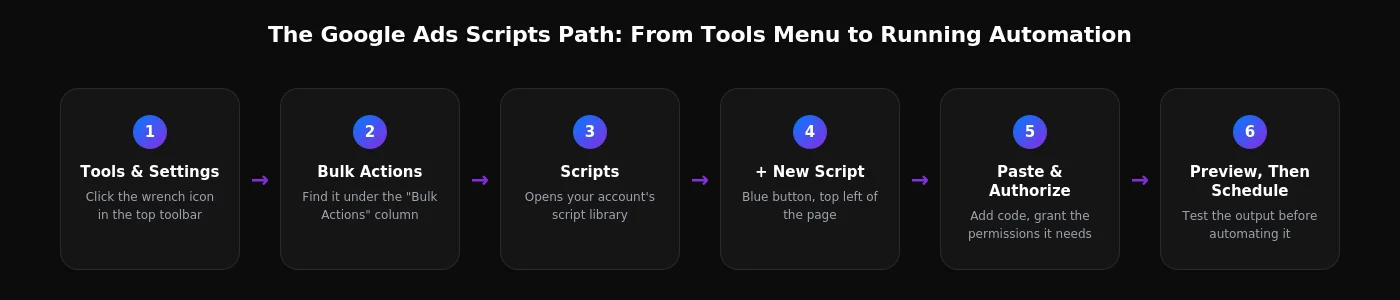
A quick note before we start: this guide walks through the exact menu path and setup steps using the current Google Ads interface, described step by step below, rather than screenshots, since Google reshuffles this UI often enough that a screenshot from six months ago is already slightly wrong. Everything below is accurate to the interface as of 2026 and written so you can follow along inside your own account as you read. Google Ads scripts let you automate repetitive account tasks, pausing wasteful keywords, sending yourself alerts, pulling performance data into a spreadsheet, using plain JavaScript that runs on Google's own servers, for free, without installing anything or connecting a third-party tool. This is the full walkthrough: how to install one, and three ready-to-use scripts to start with.
Free
no cost to write, install, or run scripts in any Google Ads account
30 min
maximum runtime per script execution before it's cut off
JavaScript
the only language scripts are written in, basic syntax is enough
Admin
access level needed to authorize a script the first time
What Google Ads Scripts Actually Are
A Google Ads script is a piece of JavaScript code that runs directly inside your account, with access to your campaigns, keywords, ads, and performance data through Google's own scripting API. It's built on the same infrastructure as Google Apps Script, which is why scripts can also send emails, write to Google Sheets, and call outside web services if needed. Scripts run on a schedule you set, hourly, daily, weekly, or on demand, and every run produces a log you can check afterward. No API keys, no server to host, no third-party subscription, everything lives inside the account it's attached to.
Before You Start
You'll need Admin access on the Google Ads account to authorize a script for the first time, standard access alone isn't enough for that initial permission grant. You don't need to be a developer, the three scripts below are ready to paste in as-is, but understanding basic JavaScript, variables, if-statements, loops, helps enormously once you want to tweak a threshold or adapt someone else's script to your own account structure. If you manage multiple accounts under an MCC, scripts can also run at the MCC level across every child account at once, which is worth knowing before you start pasting the same script into ten separate accounts one at a time.
Step-by-Step: How to Install a Script in Google Ads
Follow this path exactly inside your own account as you read, the interface elements described here are what you'll see regardless of which specific view or campaign you're currently on.
- Open Tools & Settings. Click the wrench icon in the top toolbar of your Google Ads account, it's visible from any screen once you're logged in.
- Find Scripts under Bulk Actions. In the dropdown menu that opens, look for the "Bulk Actions" column, "Scripts" is listed there alongside bulk upload and rule-based tools.
- Click the blue + button. This opens the account's script library, initially empty if you've never added one before, with a button to create your first script in the top left.
- Paste your code into the editor. Google Ads opens a code editor panel, delete the placeholder function that's there by default and paste in the script you want to use.
- Click Preview before anything else. This runs the script against your real account data but doesn't take any actual action, pauses, emails, or sheet writes are simulated and shown in a log so you can verify the logic behaves the way you expect.
- Authorize the permissions it requests. The first time a script needs to modify campaigns, send email, or access an external spreadsheet, Google Ads prompts you to explicitly grant that permission, review what's being requested before approving it.
- Name the script and save it. Give it a name that describes what it does, not just "script1", you'll thank yourself later once you have five or six scripts running in the same account.
- Set a run schedule. In the script's settings, choose how often it runs automatically, hourly, daily, weekly, or a custom frequency, matching how time-sensitive the task actually is.
3 Ready-to-Use Google Ads Scripts
These three cover the most common starting points: cutting wasted spend, catching budget problems same-day, and getting performance data out of the interface automatically. Each one is written to be pasted in with only the values at the top adjusted to your account.
Script 1: Pause Keywords With Zero Conversions
Finds keywords that have spent past a threshold with zero conversions over a lookback window and pauses them automatically. Run this in Preview mode first and check the log before letting it run live, it will pause keywords the moment it's scheduled and authorized.
function main() {
  var SPEND_THRESHOLD = 50;    // pause once a keyword spends this much, in your account currency
  var DAYS_LOOKBACK = 14;      // over this many days

  var keywordIterator = AdsApp.keywords()
    .withCondition("Status = ENABLED")
    .get();

  while (keywordIterator.hasNext()) {
    var keyword = keywordIterator.next();
    var stats = keyword.getStatsFor("LAST_" + DAYS_LOOKBACK + "_DAYS");
    var cost = stats.getCost();
    var conversions = stats.getConversions();

    if (cost >= SPEND_THRESHOLD && conversions === 0) {
      keyword.pause();
      Logger.log("Paused: " + keyword.getText() +
        " | Spent: " + cost.toFixed(2) +
        " | Conversions: " + conversions);
    }
  }
}
Adjust SPEND_THRESHOLD to match what a wasted click actually costs you, and DAYS_LOOKBACK to fit your typical conversion lag, a 14-day window is too short for a business with a long sales cycle.
Script 2: Daily Spend Alert Email
Checks your account's spend for the current day and emails you immediately if it crosses a limit you set, useful for catching a runaway campaign or bidding error before it burns through a week's budget in an afternoon.
function main() {
  var DAILY_SPEND_LIMIT = 200;               // your daily alert threshold
  var RECIPIENT_EMAIL = "you@yourdomain.com"; // where the alert goes

  var account = AdsApp.currentAccount();
  var stats = account.getStatsFor("TODAY");
  var costToday = stats.getCost();

  if (costToday >= DAILY_SPEND_LIMIT) {
    var subject = "Google Ads Alert: daily spend limit reached";
    var body = "Account " + account.getName() +
      " has spent " + costToday.toFixed(2) +
      " today, over your " + DAILY_SPEND_LIMIT + " threshold.";
    MailApp.sendEmail(RECIPIENT_EMAIL, subject, body);
  }
}
Schedule this one hourly rather than daily, checking once a day defeats the purpose of catching a same-day spend spike while it's still happening.
Script 3: Weekly Performance Summary to Google Sheets
Pulls cost, clicks, and conversions for every enabled campaign over the last 7 days and appends a row per campaign to a Google Sheet, giving you a running history without manually exporting anything from the interface.
function main() {
  var SPREADSHEET_URL = "https://docs.google.com/spreadsheets/d/YOUR_SHEET_ID/edit";

  var sheet = SpreadsheetApp.openByUrl(SPREADSHEET_URL).getActiveSheet();
  var campaignIterator = AdsApp.campaigns()
    .withCondition("Status = ENABLED")
    .get();

  while (campaignIterator.hasNext()) {
    var campaign = campaignIterator.next();
    var stats = campaign.getStatsFor("LAST_7_DAYS");

    sheet.appendRow([
      new Date().toDateString(),
      campaign.getName(),
      stats.getCost(),
      stats.getClicks(),
      stats.getConversions()
    ]);
  }
}
Create a blank Google Sheet first, copy its URL into SPREADSHEET_URL, and add a header row (Date, Campaign, Cost, Clicks, Conversions) manually before the first run so the data lands in the right columns.
Common Mistakes That Break Scripts
- Skipping Preview mode and going straight to a live schedule. A script with a logic error can pause the wrong keywords or spam your inbox before you notice, always preview first and read the actual log output, not just whether it ran without an error.
- Assuming a script keeps running past 30 minutes. Any script processing a very large account can hit the runtime limit mid-execution, if you manage a large account, filter your queries to reduce what each run has to process rather than assuming it'll finish.
- Forgetting to re-authorize after a script's requested permissions change. If you edit a working script to add a new capability, like sending email when it didn't before, Google Ads will ask you to re-authorize, and skipping that prompt means the new functionality silently fails.
Frequently Asked Questions
Are Google Ads scripts free to use?
Yes, there's no cost from Google to write, install, or run scripts in any account, regardless of account size or spend.
Do I need to know how to code to use them?
Not to use the three scripts above, they're designed to be pasted in with only the values at the top changed. Making your own changes beyond adjusting a threshold benefits from at least basic JavaScript knowledge.
How often do scripts run?
Whatever schedule you set when you save the script, options typically include hourly, daily, weekly, or a custom interval, chosen based on how time-sensitive the task is.
Can a script accidentally break my account?
A script can only do what its code tells it to do, but a scheduled script running unattended can make the wrong call repeatedly if its logic or thresholds are off, which is exactly why Preview mode and reading the log before scheduling matter.
Scripts are one of the few genuinely free ways to automate real account management instead of checking the same reports manually every day, but a script running unattended on faulty logic can do damage just as efficiently as it does good. If you want scripts built and configured for your account's specific structure and thresholds rather than adapting generic examples yourself, our Google Ads team can set them up and review the logic before anything runs live.
Want results like this for your brand?
Get a free strategy call and a tailored proposal within one business day.
Get a Free Proposal