Sep 16, 2026
Enhanced Conversions for Leads: How to Send Real Customers From Your CRM to Google Ads
For an online store, a conversion is a paid order, and the ad platform sees it immediately. For a clinic, a law firm, a property developer or a B2B service it is different: the website only captures an enquiry, and the customer appears later, in the CRM, after a call, a meeting or a payment. If Google Ads only sees enquiries, automated bidding optimises for people who fill in forms easily, not for people who buy.
Enhanced Conversions for Leads solve exactly that: they let you tell Google Ads which enquiry became a customer. Below is how this works in 2026, what has changed, how to build the flow, and where it most often breaks.
0 days
for an uploaded conversion to count in data-driven attribution
0 switch
for web and lead enhanced conversions since June 2026
SHA-0
hashing for email and phone before sending
0%
of audited lead generation accounts had it set up
Enhanced Conversions for Leads work in two stages. First, the website tag sends Google the hashed email and phone number from the form. Then, when the lead becomes qualified, a meeting or a payment in your CRM, you upload that event with the same hashed data and Google matches it back to the ad click. Since June 2026, enhanced conversions for web and for leads share a single switch, and uploads are moving to the Data Manager API. For the data to count in data-driven attribution, upload it no later than 7 days after the event. None of the lead generation accounts we audited had this set up.
How this differs from standard offline conversion import
Classic offline conversion import relies on the GCLID click identifier: it has to be saved with the lead, carried into the CRM and returned to Google Ads with the event. If the GCLID is lost on a redirect, in a multi-step form or when the lead moves between systems, the conversion cannot be tied back to the ad.
Enhanced Conversions for Leads add a second matching route: the hashed email and phone the tag sent at the moment of the enquiry, plus data from users signed in to their Google Account. That makes the setup more resilient to lost GCLIDs. The GCLID does not become redundant, though. Google explicitly recommends including it with uploaded events whenever possible to maximise accuracy.
What changed in 2026
- April 2026. Google began accepting user-provided data from several sources at once: the website tag, Data Manager and the API, deduplicating the signals itself.
- June 2026. Enhanced conversions for web and for leads were merged into a single switch. Existing setups were migrated automatically. We covered the switch itself in our Enhanced Conversions guide.
- From 15 June 2026, enhanced conversion uploads are moving to the Data Manager API.
- The seven-day rule. Conversions uploaded more than 7 days after the event still appear in reports but no longer feed data-driven attribution. Details are in our piece on that limit.
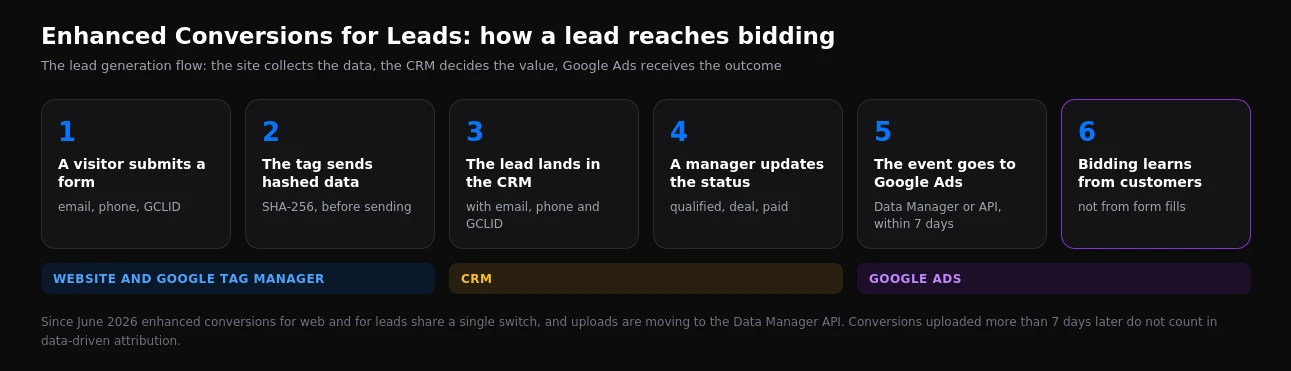
Step 1. Decide what to send
Before any tags, you need an answer to a business question: which CRM event means a valuable customer. The typical mistake is sending only the final payment. In many businesses payments are few, and bidding does not get enough signal to learn. So usually several funnel stages are sent, each with a different value.
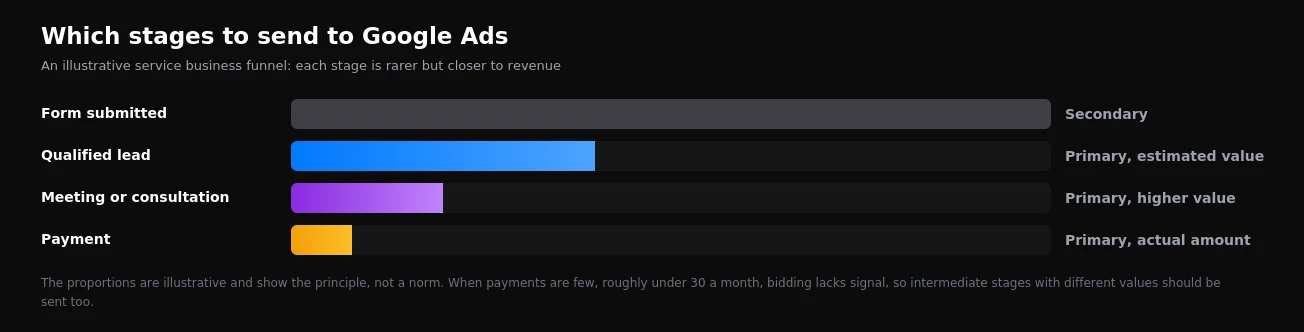
| CRM stage | Status in Google Ads | Value |
|---|---|---|
| Form submitted | Secondary, for control | No value |
| Qualified lead | Primary | Estimated, based on average lead-to-sale rate |
| Meeting, consultation, visit | Primary | Higher estimate |
| Payment or contract | Primary | Actual amount |
Once real stages reach Google Ads, the form submission should become a secondary action. Otherwise bidding optimises towards forms and customers at the same time, and there are always more forms.
Step 2. Collect the data on the website
The website needs two things. The first is enhanced conversions switched on in Google Ads conversion settings, plus a tag that sends user-provided data from the form: email and phone. In Google Tag Manager this is done with a user-provided data variable tied to the form submission event.
The second is saving the click identifier with the lead. The logic is simple: on landing, read the GCLID from the page URL, store it, and write it into a hidden form field so it reaches the CRM with the enquiry.
// Simplified logic for storing the click identifier
const params = new URLSearchParams(location.search);
const gclid = params.get('gclid');
if (gclid) {
  localStorage.setItem('gclid', JSON.stringify({ value: gclid, ts: Date.now() }));
}
// Next: check the storage age, write the value into a hidden
// form field and pass it to the CRM together with the lead
A real setup has nuances: iOS traffic may carry gbraid and wbraid parameters instead of a GCLID, the identifier should not be stored longer than the conversion window, and multi-step forms and messenger widgets often lose hidden fields.
Before hashing, email is lowercased with spaces removed, and phone numbers are written in international E.164 format, for example +44XXXXXXXXXX. If the website stores a number as 07700 900123 and the CRM as +44 (7700) 900-123, the hashed values will not match and nothing will be matched. The Google tag hashes data itself, but the format before hashing is up to you.
Step 3. Prepare the CRM
For every lead, the CRM should store: email and phone in the same format as on the website, the GCLID or its equivalents, the date and time the lead was created, and the date of every status change. Without the status change date there is no way to report correctly when the conversion actually happened.
It is also worth agreeing statuses with the sales team. If salespeople do not move leads to "qualified" or "paid", nothing reaches Google Ads and the whole setup runs empty.
Step 4. Set up the transfer to Google Ads
There are two main routes. Data Manager in Google Ads lets you connect a data source without development work: a CRM, a spreadsheet or a data warehouse, depending on what is supported for your system. The API suits cases that need full automation and custom logic, such as sending several stages with different values.
Whichever route you choose, three rules apply:
- Frequency. Send events daily, or at least several times a week, to stay within seven days.
- Completeness. Send email, phone and the GCLID together where available. The more identifiers, the higher the share of matched conversions.
- Consent. User data may only be sent with appropriate consent and an updated privacy policy, and the account must have accepted the customer data terms.
Step 5. Check the data is actually arriving
A switched-on setting does not mean the setup works. A few days after launch, review the conversion action diagnostics: how many events were uploaded, how many were matched, and whether there are format errors. Then submit a test lead, move it to the right status in the CRM and follow whether the conversion appears in Google Ads.
The key check comes a month later: compare the number of qualified leads in the CRM with the number of those conversions in Google Ads. They will not match exactly, since some leads did not come from ads, but any gap should be explainable.
Common mistakes
| Mistake | Consequence |
|---|---|
| Different phone formats on the website and in the CRM | A low share of matched conversions |
| Uploading once a month | Conversions do not count in data-driven attribution |
| Form fills and CRM stages both primary | Bidding optimises mostly towards forms |
| Leads counted as every conversion | Resubmissions inflate the signal |
| GCLID not stored in the CRM | Matching relies on email and phone only, with lower accuracy |
| Salespeople do not update statuses | Nothing reaches Google Ads |
What we see in the accounts we audit
During our audit we exported conversion settings from every audited account. Enhanced Conversions for Leads are enabled in only one, and it is an online store. None of the lead generation accounts use enhanced conversions for leads or offline conversion import. Healthcare companies optimise on on-site events: widget requests, taps, calls, and some of those are counted "every conversion" rather than "one per click". The details are in our breakdown of conversion tracking failures.
It was in exactly this kind of account that we saw monthly "leads" grow fivefold with no rise in spend. Had real patients from the CRM been reaching Google Ads, that jump either would not have happened, or it would have been obvious straight away that it had nothing to do with sales.
When this will not help
Enhanced Conversions for Leads are not a magic button. They change little if there are only a handful of leads a month, because bidding still will not have enough data. They do not work without CRM discipline. And they do not fix problems outside measurement: a weak offer, an expensive product or slow lead handling.
But for a business with dozens or hundreds of leads a month and a real gap between an enquiry and a customer, this is one of the few changes that directly affects who your advertising learns to bring in.
Frequently asked questions
We already import offline conversions by GCLID. Do we still need Enhanced Conversions for Leads?
Yes, as a complement. GCLID import keeps working, but it loses leads whose click identifier went missing. Hashed email and phone provide a second matching route, and Google recommends sending both types of data together.
How many leads do we need for this to make sense?
A reasonable benchmark is a few dozen qualified leads a month from advertising. With fewer, the setup is still useful for reporting: you see which campaigns bring customers, even if automated bidding does not yet have enough data to learn from.
Can we send the same stages to Meta?
Yes, through the Conversions API with the same hashed data. The logic of stages and values is identical; only the technical transfer and deduplication differ. We covered server-side events for Meta in our Conversions API guide.
If you want real customers from your CRM flowing back into Google Ads and Meta, see what our conversion tracking setup includes. And if you first need to understand what your account is counting right now, start with a Google Ads, GA4 and GTM audit.
Want results like this for your brand?
Get a free strategy call and a tailored proposal within one business day.
Get a Free Proposal