Aug 23, 2026
How to Set Up Google Ads Enhanced Conversions in 2026 (Step-by-Step)

Google spent years running two separate versions of Enhanced Conversions: one for web purchases, one for offline leads. As of the June 2026 rollout, that's gone, replaced by a single toggle that handles both. Simpler on paper. In practice, most accounts we audit still haven't actually finished setting it up, and "enhanced conversions enabled" in your settings doesn't mean it's sending the data Google needs.
2 → 1
separate web and leads versions merged into one feature
SHA-256
the hashing standard required for every field you send
2
separate toggles to check: account-level and per-conversion-action
Jun 2026
rollout date - already live, but far from every account is actually sending data
What Actually Changed
Before this update, "enhanced conversions for web" and "enhanced conversions for leads" were configured separately, with separate documentation and separate failure modes, which meant plenty of accounts had one running and not the other without realizing it. The 2026 version merges both into one feature with a single on/off switch, and it now accepts customer data from three sources at once: your website tag, Data Manager inside Google Ads, and API integrations. Google deduplicates across all three automatically, so you don't need to worry about double-counting a conversion that came in through more than one path.
The point of any of this is simple: match rates. Every conversion your site tracks without a hashed email or phone number attached is a conversion Google's bidding algorithm can only partially connect back to a real ad click, especially now that cookies and device identifiers are worth less than they used to be.
Setting It Up, Step by Step
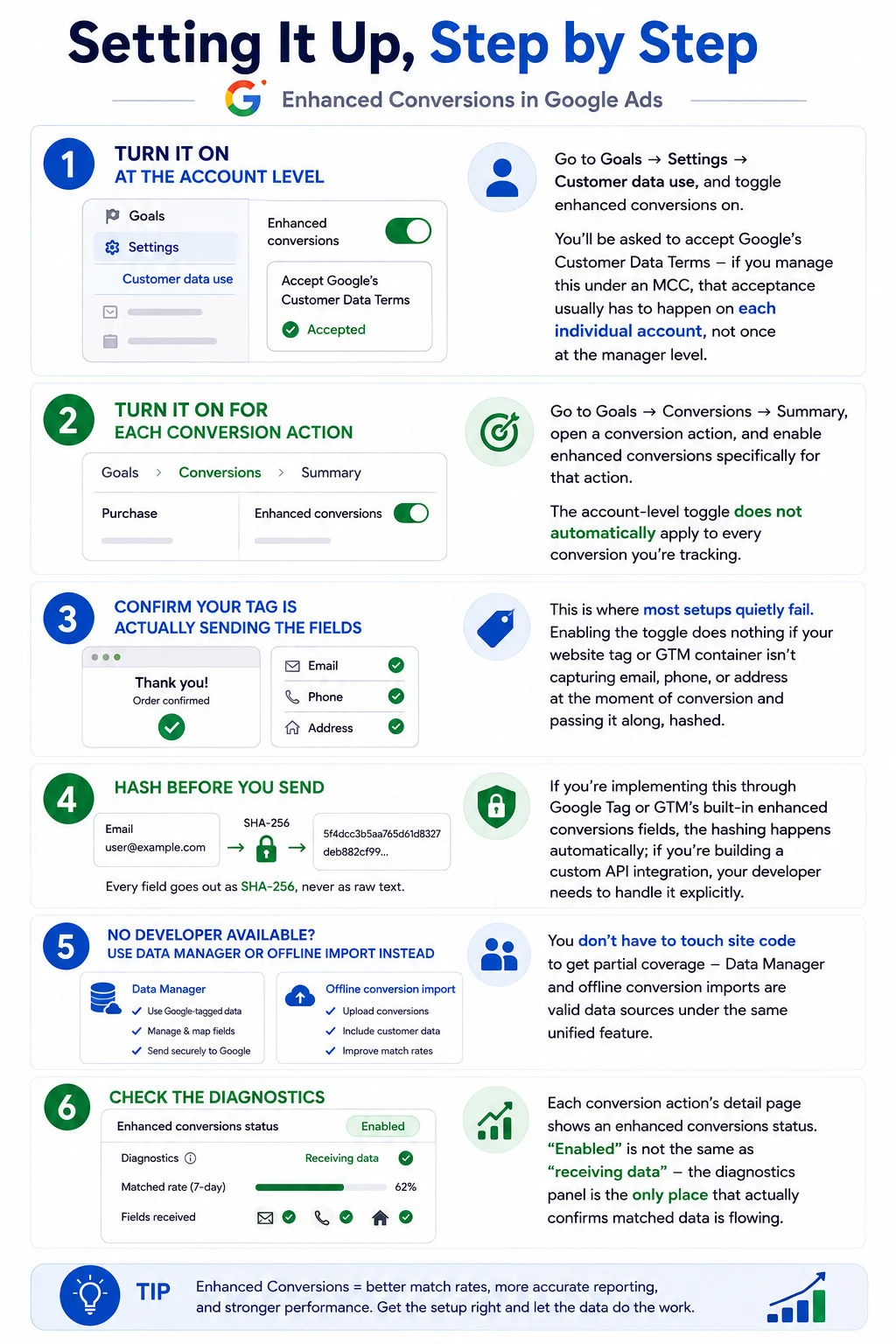
- Turn it on at the account level. Go to Goals → Settings → Customer data use, and toggle enhanced conversions on. You'll be asked to accept Google's Customer Data Terms - if you manage this under an MCC, that acceptance usually has to happen on each individual account, not once at the manager level.
- Turn it on for each conversion action. Go to Goals → Conversions → Summary, open a conversion action, and enable enhanced conversions specifically for that action. The account-level toggle does not automatically apply to every conversion you're tracking.
- Confirm your tag is actually sending the fields. This is where most setups quietly fail. Enabling the toggle does nothing if your website tag or GTM container isn't capturing email, phone, or address at the moment of conversion and passing it along, hashed.
- Hash before you send. Every field goes out as SHA-256, never as raw text. If you're implementing this through Google Tag or GTM's built-in enhanced conversions fields, the hashing happens automatically; if you're building a custom API integration, your developer needs to handle it explicitly.
- No developer available? Use Data Manager or offline import instead. You don't have to touch site code to get partial coverage - Data Manager and offline conversion imports are valid data sources under the same unified feature.
- Check the diagnostics. Each conversion action's detail page shows an enhanced conversions status. "Enabled" is not the same as "receiving data" - the diagnostics panel is the only place that actually confirms matched data is flowing.
Where This Breaks in Practice
The most common failure isn't the Google Ads settings at all, it's the tag. A form that fires a conversion event before the email field has actually been captured, a GTM variable pointing at the wrong DOM element after a site redesign, a checkout flow that redirects before the tag can grab the customer's details - any of these leaves the toggle switched on and the diagnostics panel quietly showing no matched data, sometimes for months.
If your team doesn't have someone who lives in Google Tag Manager, this is exactly the kind of gap a GTM audit is built to catch: verifying that the fields enhanced conversions actually needs are captured at the right moment, not just assumed to be there.
None of this requires rebuilding your account. It requires checking two toggles, one tag, and one diagnostics panel, in that order.
Want results like this for your brand?
Get a free strategy call and a tailored proposal within one business day.
Get a Free Proposal